 Miunit
 documentation / Start here
Agent connections
Connect Claude Code, Codex, Cursor or Gemini CLI to work through Miunit. GitHub Copilot (VS Code) has a Settings entry for planned support. Check Compatibility for verified capabilities and versions.
Connect an installed Agent
- Open Settings → Agents and select the Agent under Local agent connections.
- Choose Connect. Follow any sign-in, version, or setup prompts shown in the connection panel.
- Once the connection is ready, open New Task on Board to see which Agents can start work.
Connect an Agent and show its external threads
- Installed runtime
- Managed connection
- External tracking
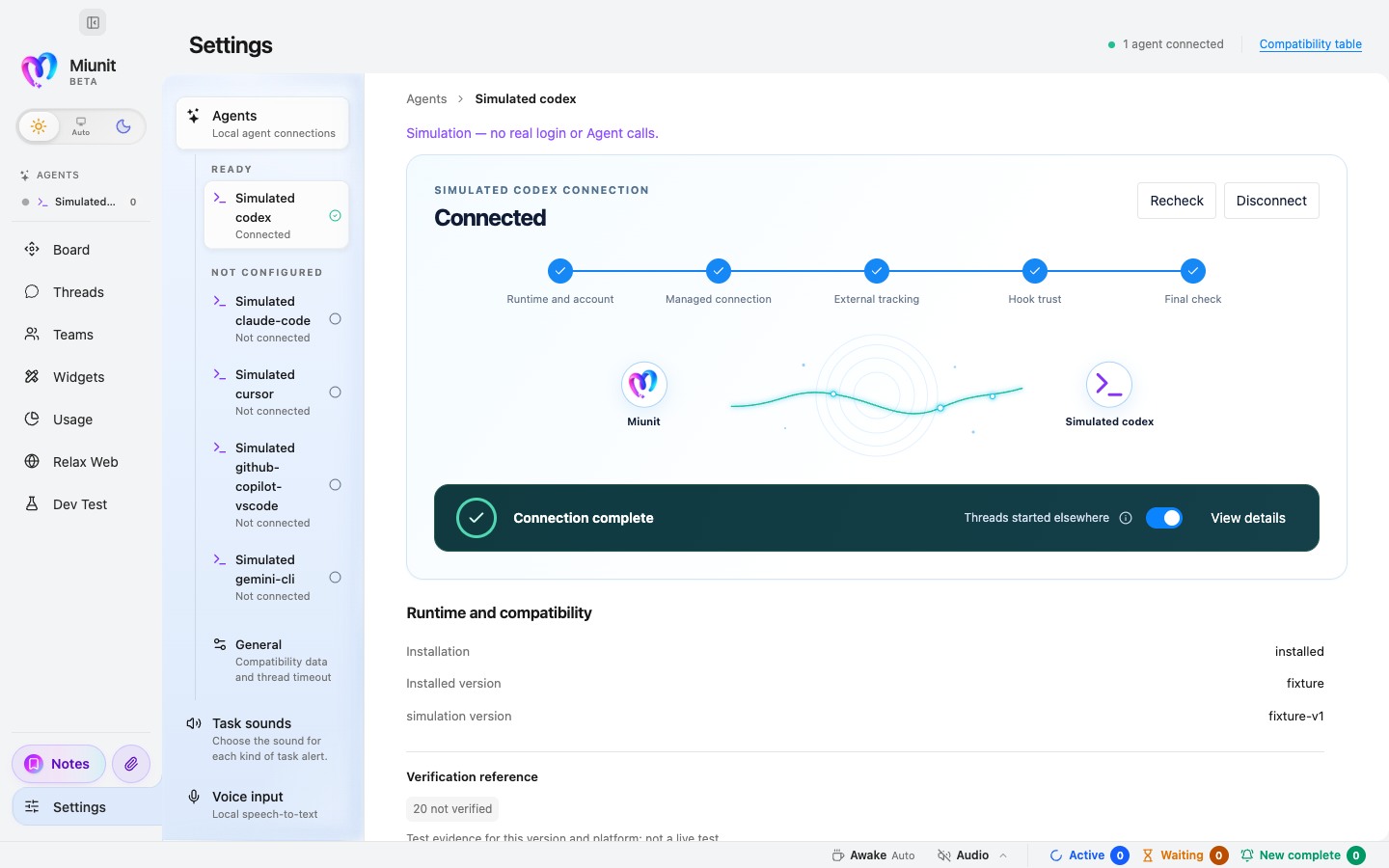
Show threads started elsewhere
For Agents that support external observation, turn on Threads started elsewhere in the connected panel. Follow any setup prompts for that Agent. This is a per-Agent setting. An external thread can appear on Board or in Threads while its original Agent app still owns the conversation.
To understand the actions available on each kind of thread, see Managed and external threads.
Find or switch a runtime
Use Runtime and compatibility to see which installation Miunit selected. If it cannot find an installation, use the offered scan or file/path picker, or follow the installation guide and choose Refetch runtimes. Then connect using the available installation.
Switch a connected runtime after its active work has finished. Check Compatibility for provider-specific support.
Recover a connection
If Miunit asks you to sign in again or continue the connection, follow the action in the connection panel and read the result. Use Disconnect when you want the Agent to stay disabled until you reconnect.
See Troubleshooting if the Agent still does not appear.