 Miunit
Local-first work
Know where your work lives.
Keep workspace records on your computer and understand what your chosen agent can send elsewhere.
Try it in Miunit
Local-first work
See the boundary before you cross it.
Sometimes you’re working with a private repository or a folder full of unfinished client material. Before you send a task, you want to know which runtime is handling it, which folder it can work in, and where the resulting records live.
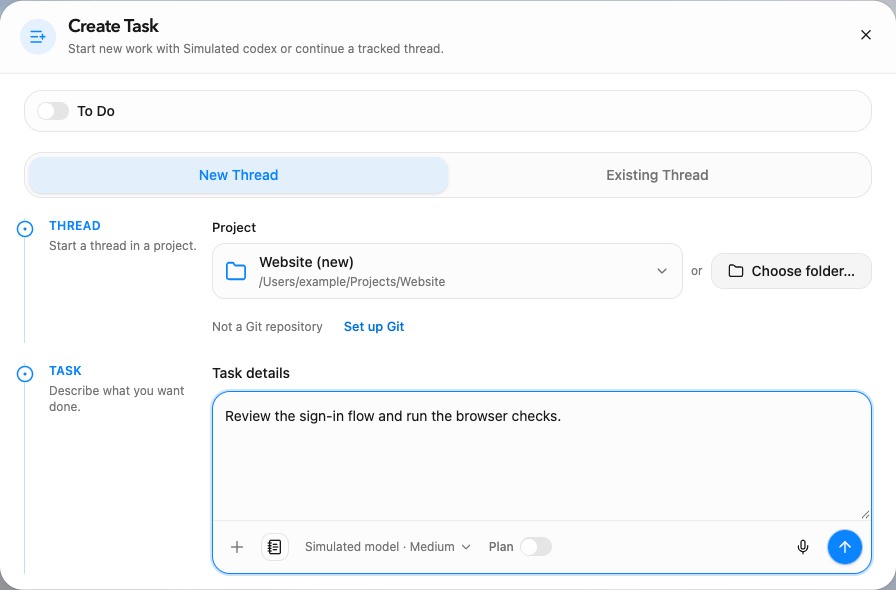
Miunit connects to agent runtimes on your computer and keeps its workspace records there. You choose the agent and project when you start a task. If you also want to see work from outside Miunit, external observation is an option per supported agent.
What to look at
Three different boundaries.
-
01 · Workspace
Records on your computer
Miunit keeps its workspace records locally. See measured footprint in Storage.
-
02 · Runtime
Agent permissions
The project folder sets where the agent starts working. Its permissions determine what it can access, and a request can still need your explicit approval.
-
03 · Model & tools
Network activity
Model and tool requests follow your chosen agent and its configuration. A provider may process requests remotely.
In practice
Give the job the material it needs.
For a private documentation review, select the intended project, give the agent the particular file or question, and review the agent’s permissions before sending. If you use a hosted model or a networked tool, check the provider’s own data handling.
Use Web Usage to inspect events reported by supported agents. Coverage can vary, especially for requests inside scripts or downstream services. Think of it as a view into reported activity, with the agent settings as the place to decide what is allowed.
Before you send
Trace the path of a sensitive task.
-

Start with the folder and the runtime.
If you are reviewing a draft under embargo, identify the file and the project folder you intend to use. Check the installed runtime in Agent settings and review the launch permissions it offers. The working folder tells the agent where to start. The runtime permissions and the tools you allow determine how far it can reach.
-

Decide what can leave the computer.
The Miunit workspace record stays local. A hosted model or networked tool may still receive part of the task through your chosen agent. That boundary matters when a prompt includes client details, an attachment, or a path that gives a tool access to private work. Check the provider’s handling and give it only the material it needs.
-

Use the reported record as a follow-up.
After a run, inspect the supported web and tool activity in Usage if you want to understand what the agent reported. A tool call inside a script or a downstream service can fall outside that view. When you need stronger assurance, use your runtime and network controls alongside the record Miunit shows.
Miunit Docs