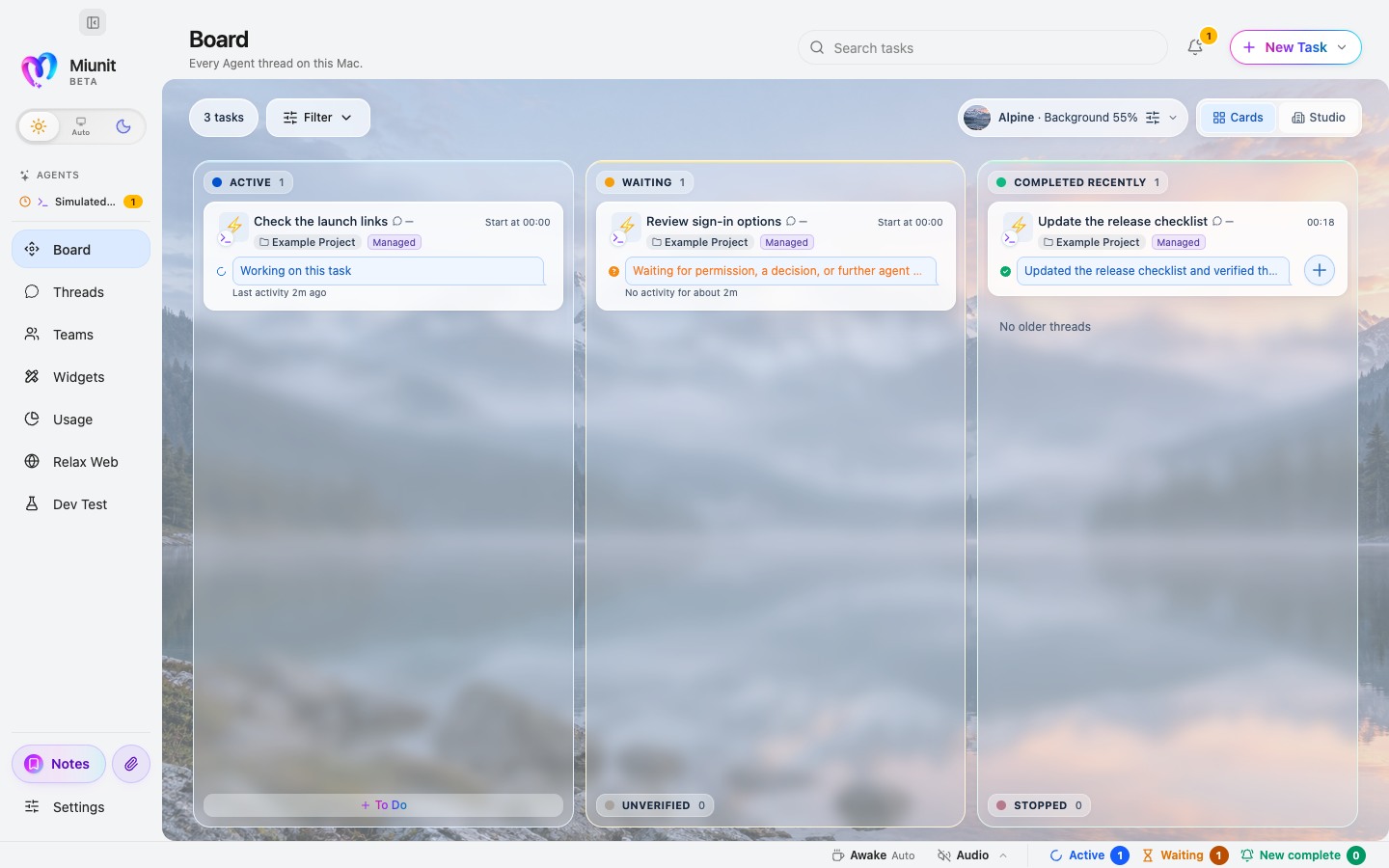
Board is the overview. Threads holds the conversation behind each task. Screenshots in these
guides use sample data.
Full-size image
Connect an Agent
Open Settings → Agents, select an Agent, and follow its connection checks.
Sign in to the Agent if prompted. The actions Miunit can offer depend on the Agent, its
installed version, and the session. See Compatibility for
provider details.
Start your first task
In Board, open New Task and choose an available Agent. In
Create Task, select a project folder, describe the result you want in
Task details, and submit. The project folder is where the Agent will work.
Board · Interactive sample workspace
Board
Every Agent thread on this Mac.
7 tasks Filter
Project
Completed · Last 3 days
Alpine · Background 55% Cards Studio
Active2
Codex — tools · — files reported · — tokens
Cursor — tools · — files reported · — tokens
Waiting1
Review API approachCheck the proposed changes and confirm the approach.Answer this request in Claude Code. Open in Claude Code
Claude Code — tools · — files reported · — tokens
Completed recently3
Codex — tools · — files reported · — tokens
Claude Code — tools · — files reported · — tokens
Codex — tools · — files reported · — tokens
Stopped1
Cursor — tools · — files reported · — tokens
Awake Auto AudioActive 2Waiting 1New complete 0
Demo paused
Follow the result
Look in Active while the Agent works. If it asks a question, check
Waiting for the next action. When the task finishes, open its card in
Completed recently or select the conversation in
Threads to read the result.
 Miunit