 Miunit
 documentation / Organize & collaborate
Notes & Clips
Keep material you want to find again in Saved Notes, and use Clips to move text or images between tasks.
Find and reuse saved material
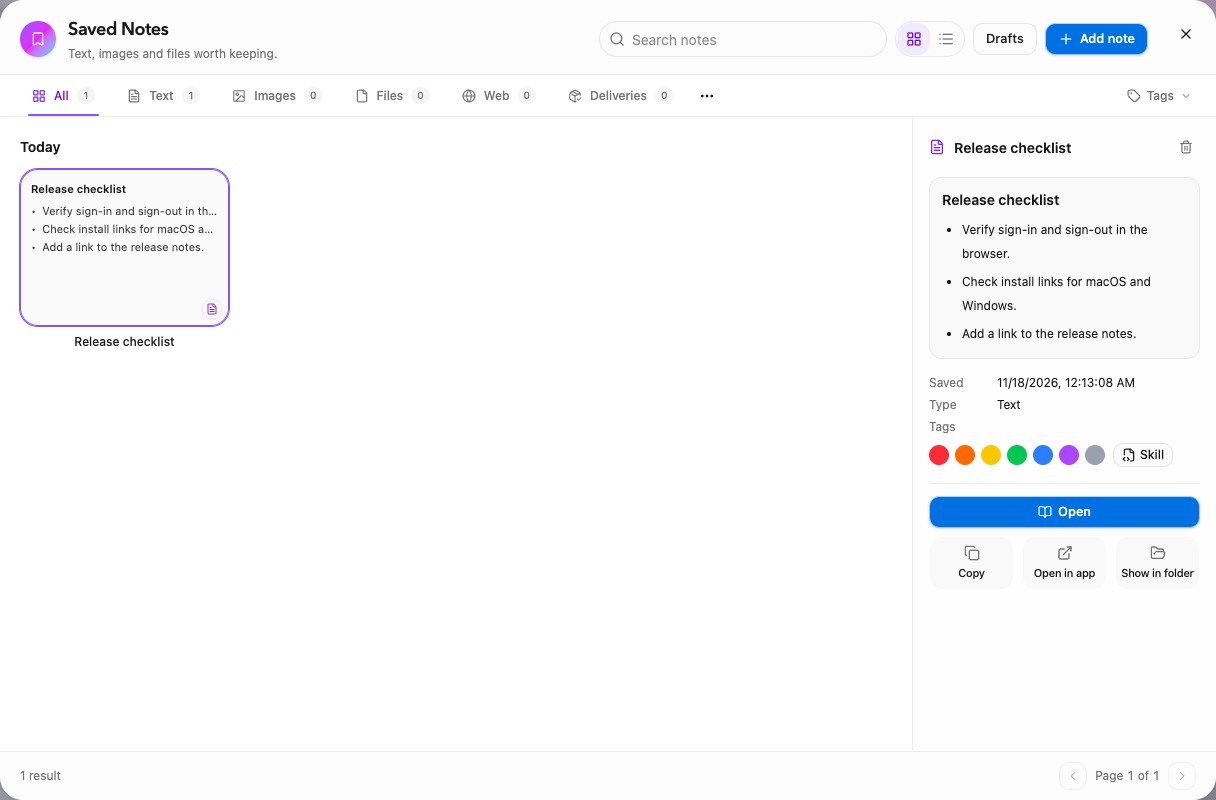
Open Notes at the bottom of the sidebar to search or browse the library. Select an item to preview it. In a compatible composer, use Add from Notes to insert a snapshot of saved material. You can also use Save to Notes on supported task results.
Write or generate a note
Choose Add note. Use Upload a file to save an existing file, or choose Create under Create content to start a draft. Write in the editor or use Generate with your Agent and review the result before saving. Use Drafts to return to an unfinished note. Discard draft removes the draft.
Use Clips as a temporary tray
Open the paperclip button beside Notes. Type text and press Enter, or paste or drop a supported image. Use Copy on an item to put it on the clipboard. Hover or focus the item to pin it or choose Save as Note to move it into the library.
Unpinned clips expire after the retention period shown at the bottom of the tray. Pin a clip if you want it to survive that cleanup.
Move a clip into Saved Notes
Nothing in the tray
No saved note