 Miunit
 documentation / Organize & collaborate
To Do
Queue a new task or a follow-up for later. You can set a start time, a prerequisite, or both.
Queue a task instead of starting now
Open New Task and turn on To Do in Create Task, or start from the To Do area below Active on Board. Choose the Agent, project, and prompt as usual. Select Add To Do to put the task in the queue.
Try the To Do eligibility rules
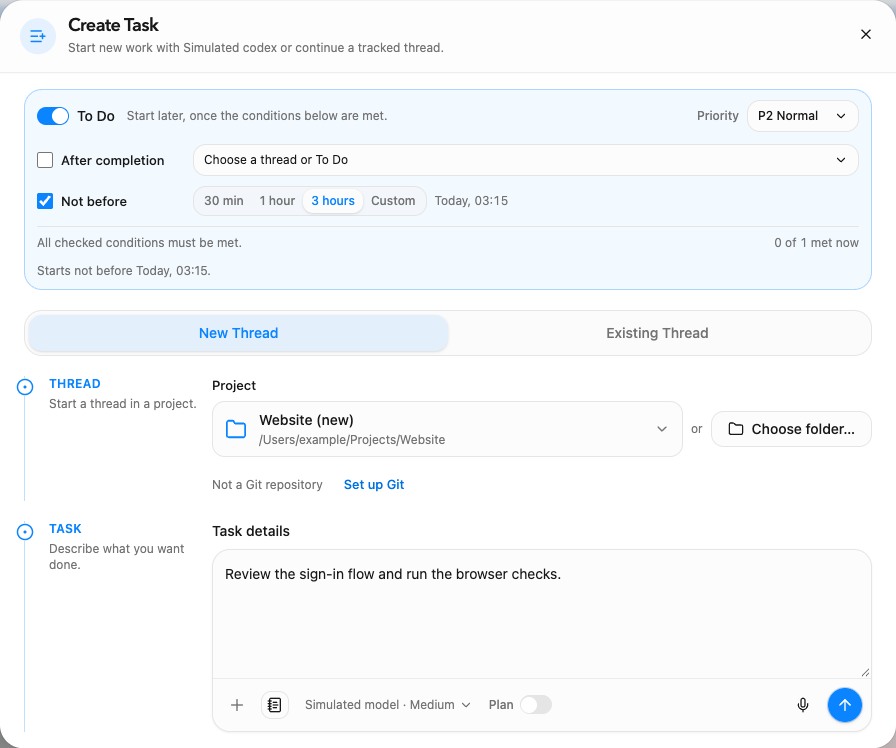
Choose when it can run
- Not before
- Choose a time or delay. The task becomes eligible at that time.
- After completion
- Wait for the selected thread or earlier To Do’s thread to finish normally.
- Both conditions
- Miunit waits until both are met. A task continuing an existing thread also waits for the thread to be available.
Manage the queue and resolve blockers
Use the To Do area to review queued tasks and adjust how many automatically run at once. Turn on Run To Dos automatically to let eligible items start on their own. The concurrency limit counts To Do turns that are still running, including a turn whose submission is unverified. Board marks those turns with a To Do icon. Higher priority tasks are considered first. When a task Needs attention, open its details and follow the reason shown. For example, a failed prerequisite can be removed or deliberately bypassed. Run now still checks whether Miunit can safely start the work.
A time condition makes the task eligible. Miunit’s service, the Agent connection, and the project folder still need to be available for execution.